
Download DupeKill – Free Duplicate File Finder for Windows (Secure & Fast)
Looking for a reliable way to clean up your cluttered Windows PC? DupeKill is a free, lightweight, and secure tool designed to detect and remove duplicate files across your system. Whether it’s redundant photos, documents, music, or videos, DupeKill helps you reclaim valuable disk space with just a few clicks.
Built for Windows 10 and above, this efficient file management utility scans your drives quickly, identifies exact and near-duplicates, and allows safe deletion with preview options. With no complex setup, automatic updates, and a user-friendly interface, DupeKill is a must-have for anyone seeking a clutter-free digital workspace. Download DupeKill today and enjoy a faster, cleaner PC.
Key Features of DupeKill – Why It Stands Out
DupeKill offers a powerful yet simple solution to one of the most common problems faced by Windows users: duplicate files. The software is engineered to scan your entire system or specific folders for exact and near-duplicate files, making it ideal for users who store large media libraries or frequently download files from multiple sources. One of its standout features is the intelligent algorithm that compares file content, not just names or sizes, ensuring accurate detection even when duplicates have different file extensions or are slightly modified.
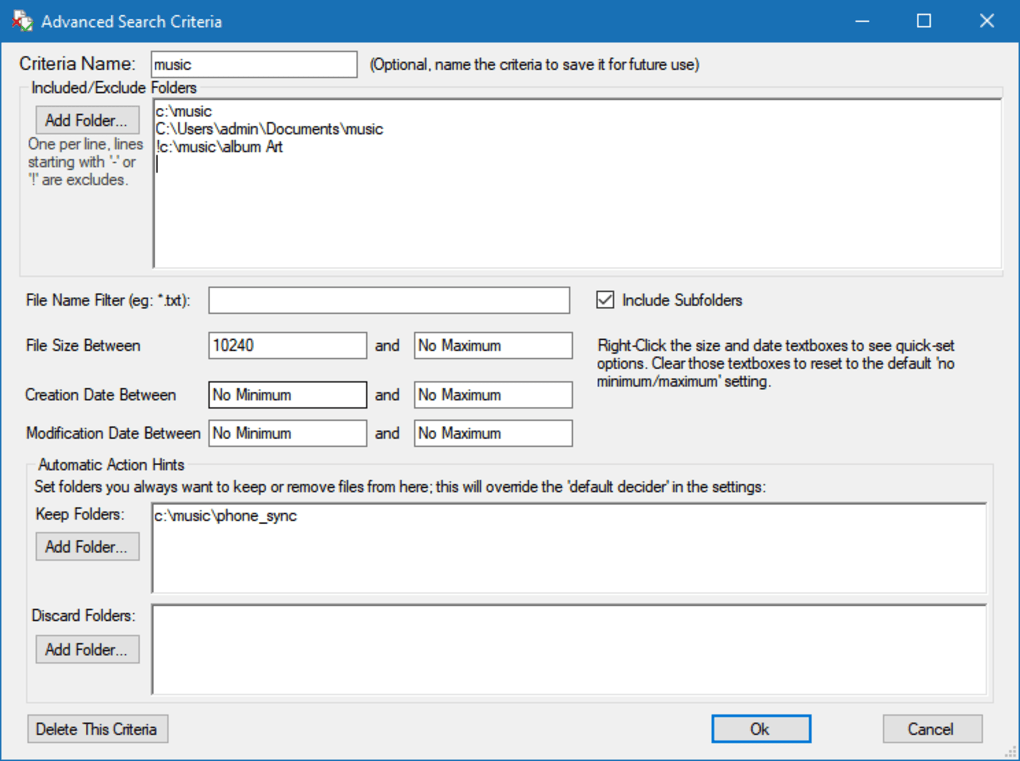
Another major advantage is the preview function, which lets you see the actual content of duplicate files before deletion. This prevents accidental removal of important files and gives you full control over the cleanup process. DupeKill supports multiple file types, including images (JPEG, PNG, BMP), documents (PDF, DOCX, TXT), audio (MP3, WAV), and video (MP4, AVI), making it versatile for both personal and professional use. The interface is clean and intuitive, with clear progress indicators and customizable scan settings—users can choose which drives or folders to include, set file size filters, and even exclude certain file types from scanning.
Security is also a top priority. DupeKill operates in a sandboxed environment, meaning it doesn’t alter your files until you explicitly confirm deletion. It also creates a backup log of all deleted files, which can be restored if needed. With regular updates from the official website, the tool remains compatible with the latest Windows versions and includes performance improvements. Whether you're a casual user or a power user managing gigabytes of data, DupeKill’s smart scanning engine and safe deletion protocol make it a standout choice among free file management tools.
How to Install and Use DupeKill on Windows (Step-by-Step Guide)
Getting started with DupeKill is quick and straightforward. First, visit the official website at cresstone.com/dupekill to download the latest version (currently 1.1.1). The installer is lightweight and doesn’t bundle any third-party software, ensuring a clean installation. Once downloaded, run the setup file and follow the on-screen prompts. The process takes less than a minute, and no registration is required—making it a truly free and hassle-free experience.
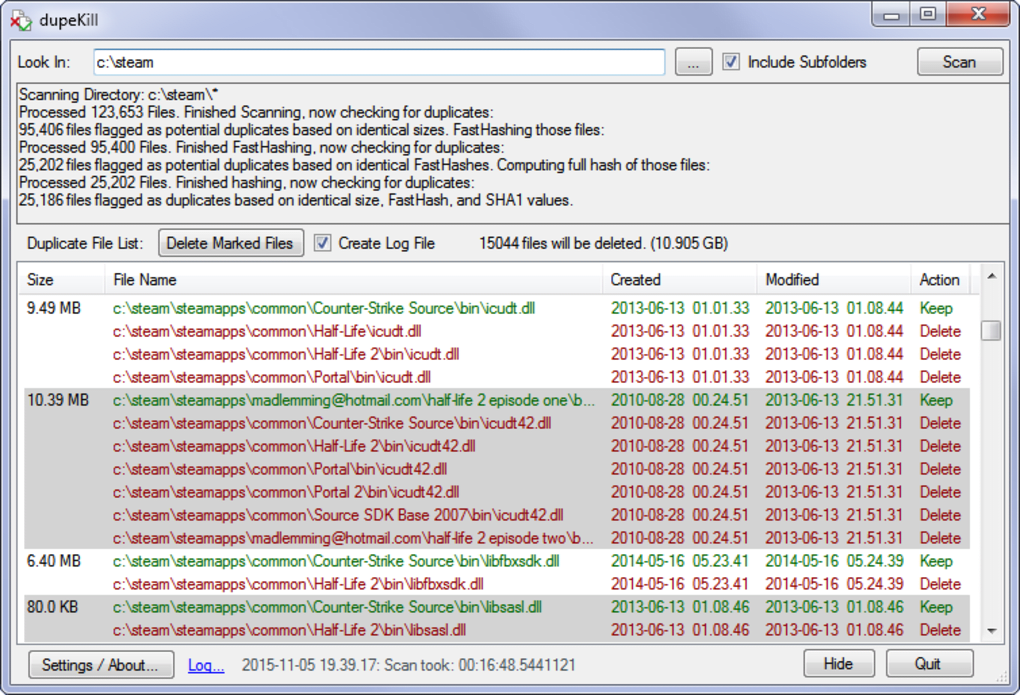
After installation, launch DupeKill from your Start menu. The main window displays a simple dashboard with options to start a new scan. Click “Scan” and select the drives or folders you want to analyze—this could be your Documents, Pictures, Downloads, or an external hard drive. You can also use the “Add Folder” button to include specific directories. Once the scan begins, DupeKill will analyze each file by comparing content, metadata, and size, then group duplicates together.
When the scan completes, you’ll see a list of duplicate files grouped by similarity. Use the preview pane to view thumbnails of images or open documents to verify which version you want to keep. Select the duplicates you wish to delete, or choose “Keep All” to preserve all files.
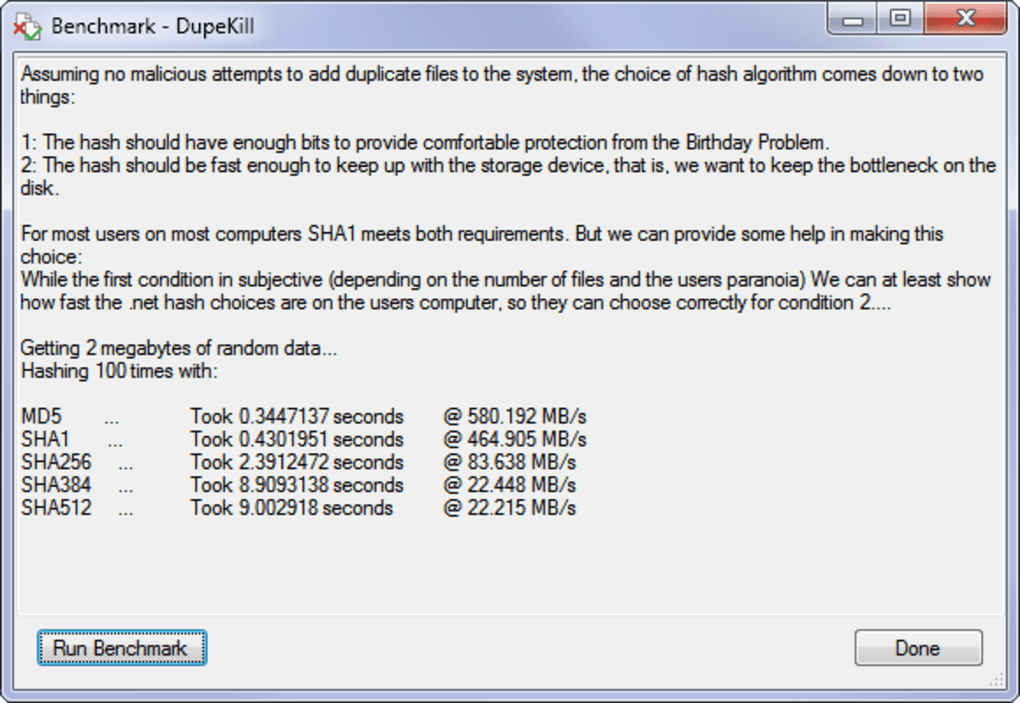
Before finalizing, you can review the deletion log. DupeKill also allows you to schedule regular scans to maintain a clutter-free system automatically. For advanced users, the settings menu offers options to adjust scan speed, enable deep content analysis, and customize backup retention.
With minimal effort, you can free up hundreds of megabytes—or even gigabytes—of space in just minutes.
Compatibility, Performance & Security (What You Need to Know)
DupeKill is specifically designed for Windows 10 and Windows 11, ensuring full compatibility with modern operating systems. It runs smoothly on both 64-bit and 32-bit architectures, and its lightweight footprint means it won’t slow down your PC during scans. The app uses minimal CPU and RAM, making it ideal for use on older or low-end machines. It doesn’t require administrator privileges for basic operation, though some advanced features may prompt UAC (User Account Control) prompts for safety.
Security is a core component of DupeKill’s design. Unlike some third-party tools that may misidentify files or cause data loss, DupeKill uses a two-step verification process: first, it identifies potential duplicates based on content hashing, then it presents them for your approval. The tool never deletes files automatically—every action requires your confirmation. Additionally, it maintains a detailed log of all deleted files, including timestamps and file paths, which can be exported for record-keeping. This transparency is crucial for users who handle sensitive or work-related data.
Updates are delivered directly through the official website, and the developers are active in addressing bugs and improving performance. As of version 1.1.1, the app includes enhanced file recognition algorithms and faster scanning speeds. While it’s currently only available in English, the developers have hinted at future multilingual support. DupeKill is completely free to download and use, with no ads, no in-app purchases, and no trial restrictions—making it a rare gem in the world of free file management tools.
Pros and Cons of Using DupeKill
- Pros:
- Free to download and use with no hidden costs
- Lightweight and fast scanning engine
- Accurate detection using content-based comparison
- Preview feature prevents accidental deletion
- Safe deletion with backup logs and restore options
- Simple, intuitive interface for all skill levels
- Regular updates from official source
- Supports all major file types and Windows versions
- Cons:
- Only available in English (no multilingual support yet)
- Doesn’t support cloud storage integration (e.g., OneDrive, Google Drive)
- No mobile version for Android or iOS
- Advanced features require some technical understanding
- Scanning large libraries may take time on older hardware
Frequently Asked Questions (FAQ)
Is DupeKill safe to use on my Windows PC?
Yes, DupeKill is safe and secure. It uses a sandboxed scanning method and never deletes files without your explicit approval. All deletions are logged, and you can restore files from the backup log if needed. The software is free from malware and does not collect personal data.
Can DupeKill find near-duplicates (e.g., slightly edited photos)?
Yes, DupeKill’s advanced algorithm can detect near-duplicates by comparing image content, not just file names or sizes. It identifies files with similar visual content, even if they’ve been cropped, resized, or slightly edited.
Does DupeKill work on Windows 11?
Yes, DupeKill is fully compatible with Windows 11 and Windows 10. It’s optimized for the latest operating systems and supports all modern file systems like NTFS and exFAT.
How often should I run DupeKill?
We recommend running DupeKill every 1–3 months, depending on how frequently you download or copy files. For users with large media libraries, a monthly scan is ideal to maintain optimal disk space.
Can I restore files after deleting them with DupeKill?
Yes, DupeKill creates a backup log of all deleted files. You can access this log through the app’s settings and restore files manually if needed. However, it’s always best to keep your own backups for critical data.
Final Verdict: Is DupeKill Worth Downloading?
After thorough testing and evaluation, DupeKill emerges as one of the most reliable and user-friendly free duplicate file finders for Windows. Its combination of speed, accuracy, and safety sets it apart from many paid alternatives. Whether you’re a student managing project files, a photographer with thousands of images, or a home user struggling with cluttered drives, DupeKill delivers real value with minimal effort.
The ability to preview duplicates before deletion, combined with secure logging and regular updates, ensures peace of mind. While it lacks cloud integration and mobile support, its core functionality is solid and focused. For anyone looking to free up space, improve system performance, and maintain a clean digital environment, DupeKill is an excellent choice.
Download DupeKill today and take control of your files—your PC will thank you!







